


Part of what makes VS Code beloved by many is its extensibility—you can customize pretty much any part of the interface through extensions. One way of doing this is by customizing the product and file icons VS Code uses in its interface, this article will focus on the latter.
Configuring with custom icons.
It took me a while to figure this out, but you can customize folder icons for the Material Icon Theme (published by Philipp Kief, v5.28.0). I followed the instructions outlined in the Details tab of the extension page.
Before we begin, make sure you prepare two SVG icons for the folder you want to customize — one for the closed state and the other for the opened state. Here is a sample for a folder name lab.
SVG Files:


You can name them whatever you want, but be sure to append -open before the file extension for the opened-state SVG.

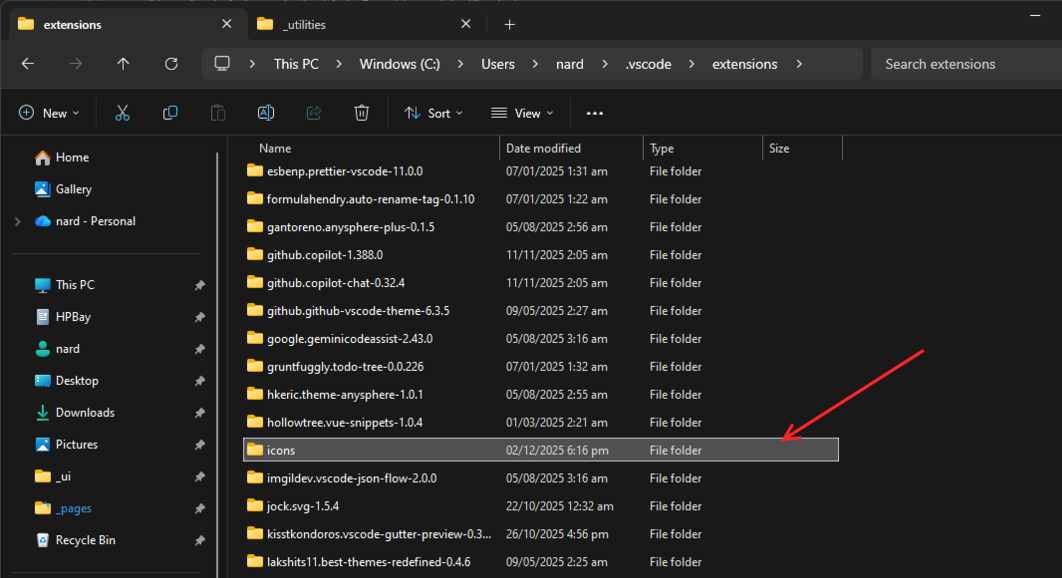
Next, you need to move the icons to a folder on your system where the extension can access them. For this to work, place them in a custom folder (I named mine "icons") inside the VS Code extensions directory.
The is usually located in your root folder at: <user>/.vscode/extensions/.
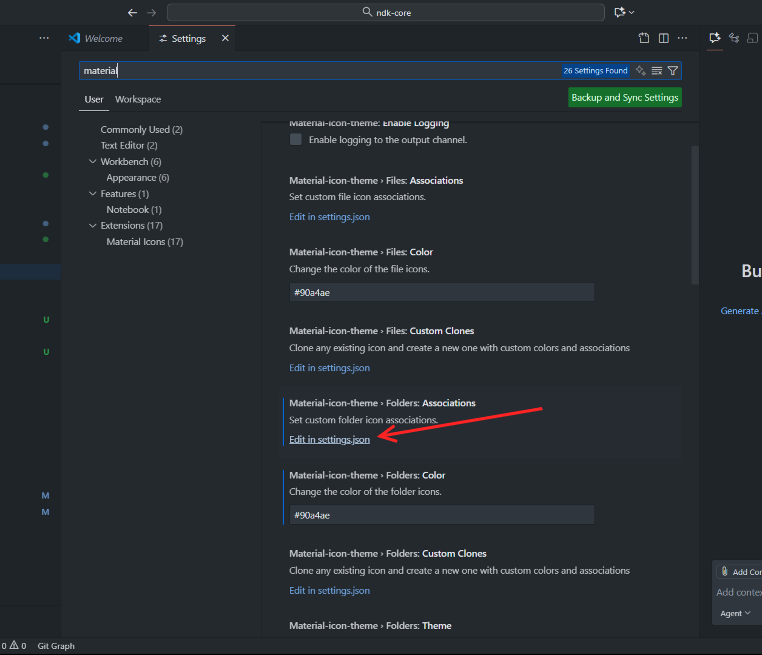
The final step is to update the Material Icon Theme configuration in your user settings.json file. To access this, search for “material” in Settings and click the “Edit in settings.json” link under
Material Icons > Folders: Associations, then add the following snippet (only if the object hasn't already been populated):
  "material-icon-theme.folders.associations": {
    "lab": "../../../../icons/folder-sample"
  }
You can get to the user settings more quickly by searching for "User Settings" in the Command Palette.
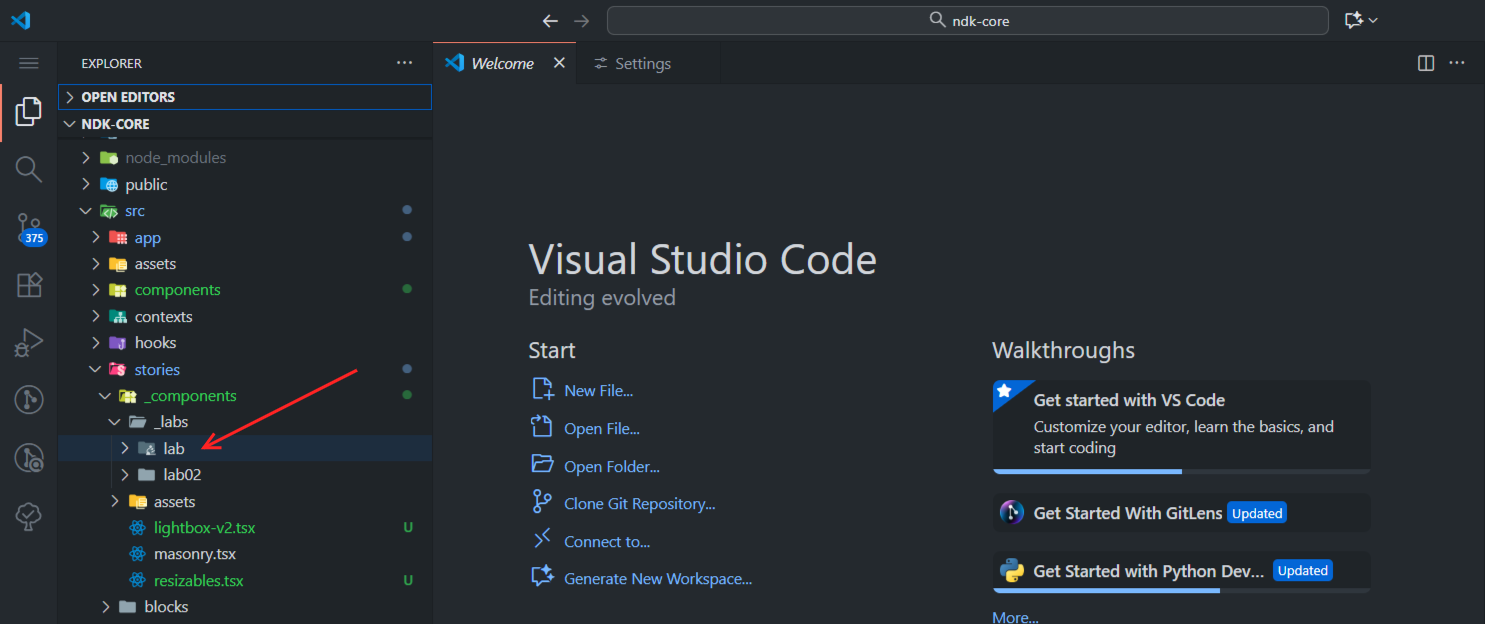
Now, create a folder named "lab", and your new icons will be applied. (You may need to restart VS Code for the changes to take effect.)
Final result:
Cloning existing icons
If you don't have the time to create custom icons, you can clone existing ones and associate them with custom folder names.
This approach is much simpler and straightforward. Open your user settings.json file and paste the following snippet:
  "material-icon-theme.folders.customClones": [
    {
      "name": "del",
      "base": "trash",
      "color": "red-500",
      "lightColor": "red-700",
      "folderNames": ["del", "delete", "bin"],
      "rootFolderNames": ["trash"]
    }
  ]
For the above example, the new association is del and the icon being cloned is trash. See the folder and Icon names reference.
Conclusion
Today, we only covered folder customizations, but the same method can be applied to file icons as well. Thanks for reading!